- Start & Build

Product Overview
What you can do with BigCommerce.
Agentic Commerce
 AI-powered solutions for growth.
Design Your Store
Build your store with or without code.
Apps & Integrations
Over 1,200 apps to help you grow.
Migrate to BigCommerce
Switch from Shopify, Woocommerce, Salesforce, Magento, and more.
- Launch Services
Overview
Chart your path to success with specialised services.Implementation Project Management
Experts to ensure you launch on time and under budget.Solution Architecture
Seasoned advisors to help you best design your store.Data Migration & Optimisation
Expertise on a clean and clear path to migrating your data.Enterprise Launch Package
Personal training on how to set up and launch your BigCommerce Store.

Professional Services Blog Series
Get to know our teams and how they support your success in this Q&A series.


Translating Your Storefront with the GraphQL Translations API

Create your store and start selling today.
Create your new website.
See if the BigCommerce platform is a good fit for your business.
No credit card required.

Written by
Luke Steiner14/09/2026
Translating Your Storefront with the GraphQL Translations API
Get The Print Version
Tired of scrolling? Download a PDF version for easier offline reading and sharing with coworkers.
A link to download the PDF will arrive in your inbox shortly.
Key highlights:
BigCommerce supports localized storefront experiences across Catalyst, Stencil, and Makeswift, although translations work differently within each.
Translatable content includes product and category information, brands, promotions, shipping methods, checkout settings, transactional emails, and more.
The control panel is best suited for individual translations, while the GraphQL Translations API enables programmatic and bulk updates.
Every API request is scoped by resource type, channel, locale, and resource ID.
You can use queries and mutations to read, write, and validate translations across resources and locales.
A more scalable way to translate your storefront
Multi-language storefronts used to mean maintaining duplicate content or bolting on a third-party translation layer. BigCommerce now supports locale-aware storefronts natively across Catalyst (BigCommerce's Next.js-based headless storefront) and Stencil (BigCommerce's traditional theme-based storefront), programmatically through BigCommerce's GraphQL Translations API, and via a new control panel UI for individual translations. Each can be paired with Makeswift, a visual page builder that lets merchants edit layout and content without touching code.
This blog focuses on the GraphQL API: how translations are structured, and how to make your first call. First, a quick look at what's translatable and where translations show up.
What's translatable
Before getting into any specific surface, it helps to know what "translation" actually covers in BigCommerce. Translatable content is store and catalog data — the kind of thing that lives in BigCommerce's database and gets rendered by a storefront, as opposed to page layout or design.
That data spans a wide range of resource types: products and categories, brands, promotions, shipping methods, checkout settings, transactional emails, and more. For a product specifically, the translatable fields include name, description, warranty, availabilityDescription, searchKeywords, pageTitle, metaDescription, and customFields.
Every one of these fields can hold an original value and a translation value per locale. That pairing is the core concept behind everything else in this post.
Where translations are supported
Translations exist in the 3 surfaces that we previously mentioned, Catalyst, Stencil, and Makeswift. However, locales and translations function slightly differently between them.
In Stencil, the locale is read by the browser’s accept-language header automatically, and also supports manual selection via a Language selector (in select themes).
Catalyst also supports these methods; however, it also has built-in support for localisation down the actual component level code by way of the URL and middleware. For example, you can pass in your domain, and append “/es-MX/” between the domain and the path and it will render the Spanish translation for that page if there were translated data to show.
Finally, Makeswift handles translations differently from Catalyst and Stencil. Makeswift enables the user to create separate copies of pages, per locale, and translate the content of those pages. If you use dynamic content in Makeswift pages, such as product information, this will still be automatically translated; however, there are not currently separate APIs for creating these pages/locales, and managing the content within them. Stay tuned, as there are massive updates coming soon on this front.
These are the surfaces where locales and translations apply. There are two ways to add translated content to the data model:
Control panel UI: Set translations directly in the BigCommerce control panel without using an API. This is the most straightforward option for one-off edits or small catalogs.
GraphQL Translations API: Create translations programmatically, including in bulk. This API also powers the translation functionality in the control panel.
The GraphQL Translations API
Translations live behind BigCommerce's GraphQL Admin API, under a translations node available on translatable resources — the same resource types and fields covered above.
Every translation request, whether reading or writing, is scoped by four variables:
resourceType: which kind of resource you're working with (e.g. PRODUCTS)
channelId: the sales channel the translation applies to
localeId: the target locale (e.g. es-MX, fr)
resourceId: the specific record, formatted as bc/store/{{resource_type}}/{{resource_id}}
That combination — resource type, channel, locale, and resource ID — is the mental model to hold onto. It's the same shape, whether you're reading one product's translations or writing them.
Reading translations: An example query.
Here's what a request for a single product's translations looks like:
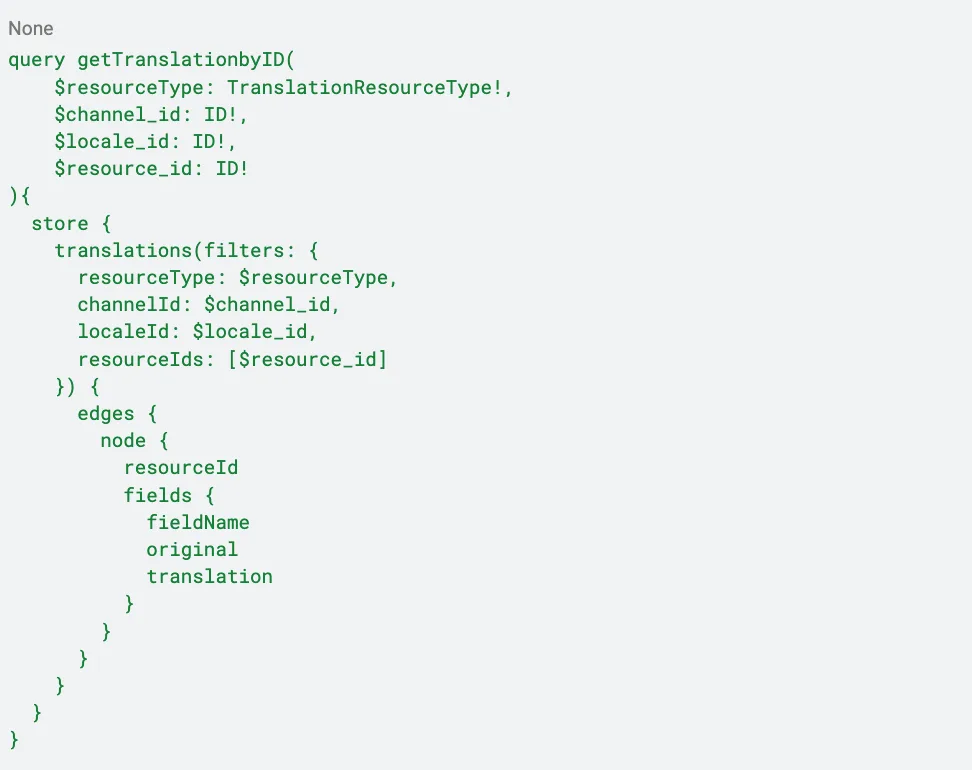
Pass in the four scoping variables, and the response comes back as a list of field nodes — each with a fieldName, its original value, and the translation for the locale you queried. Even before you write anything, this tells you exactly which fields already have locale coverage and which are still missing a translation.
Writing translations: An example mutation.
Writing a translation follows the identical variable structure, but as a mutation. Instead of resourceIds, you pass an entities array — one entry per resource, each with a resourceId and a list of { fieldName, value } pairs for the fields you want to set.
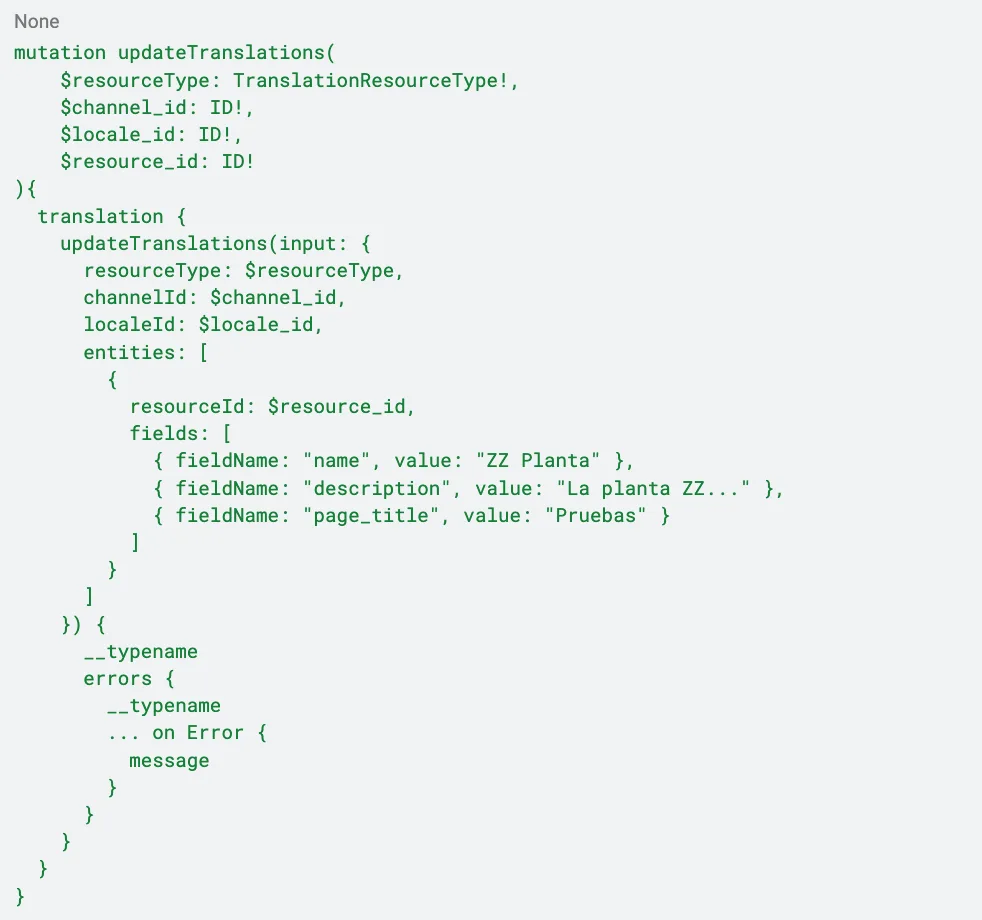
The mutation response includes __typename and an errors array, which matters because translation writes can partially fail — one field can succeed while another is rejected. Checking errors on every call is worth building into any script you write against this API.
Validating your translations
Once a translation is written, validating it is straightforward: switch the storefront to that locale (via the URL path, e.g. /es-MX/...) and confirm the translated content renders on the page. If it doesn't show up, the usual suspects are a locale mismatch between what you wrote and what you're viewing, caching, or a field that wasn't included in the mutation.
Practice on your own
We've put together resources so you can work through the full flow at your own pace:
Postman collection: Explore prebuilt Get Translation (by ID), Get Translations, and Update Translations requests that are ready to use with your own sandbox store.
Developer documentation: Follow the step-by-step guide to translating products.
Download the collection, add your store credentials and a few resource IDs, and try translating a product from start to finish. Then, use the bulk pattern in the collection to scale across an entire resource type. It’s a practical way to get comfortable with the API before integrating it into your own tooling.
The final word
Translations in BigCommerce aren’t limited to a single surface. The control panel, Stencil, and Catalyst all read from the same underlying data, while the GraphQL Translations API lets you manage that data programmatically and at scale. Once you’re comfortable with the queries and mutations covered above, you can apply the same patterns across resources and locales to translate larger catalogs.
Ready to put it into practice? Explore the developer documentation for step-by-step guidance on translating products with the Translations API.